Neevia
PDFsign/encrypt
user’s manual
version 4.5
License Agreement
ELECTRONIC END USER LICENSE AGREEMENT
For One (1) Computer
This is an End User License Agreement. This is a contract. If you install this software, you must abide by the terms of this agreement. This license is applicable to all software products sold by Neevia Tech. The term software includes upgrades, modified versions or updates. This software is licensed and not sold. Only a non-transferable and nonexclusive right to use the Neevia products is granted to the end user.
The following are definitions that should be noted by the user:
a. COMPUTER/SERVER
This is a single computer owned, rented or leased by a single individual or entity on which one or more applications load and execute software in the memory space of that computer. Software is installed on a server for one or more users. All computers/servers must be licensed to utilize Neevia software.
b. VIRTUAL SERVER
This is a single computer or a virtual machine (a software implementation of a machine that executes programs like a physical machine) that is owned, rented or leased by an individual or entity that turns around and rents or leases access to others. The virtual server may have one or more applications on it for the end users to use. The purpose of the virtual server is to give multiple users access to many software programs.
c. DEVELOPMENT
This means that you are programming a specific application or tool that will interact with the software that you are licensing from Neevia Tech.
THIS IS A CONTRACT BETWEEN YOU AND NEEVIA TECH. YOU SHOULD CAREFULLY READ THIS LICENSING AGREEMENT AND MUST ACCEPT ALL THE TERMS AND CONDITIONS BEFORE INSTALLING THIS NEEVIA SOFTWARE. BY INSTALLING THE SOFTWARE, YOU ARE AGREEING TO BE BOUND BY THE TERMS AND CONDITIONS OF THIS LICENSE. IF YOU DO NOT AGREE TO THE TERMS OF THIS LICENSE, DO NOT INSTALL THE SOFTWARE, AND DO NOT USE THE SOFTWARE. IF YOU VIOLATE THIS AGREEMENT, YOU WILL BE SUBJECT TO LEGAL ACTION BY NEEVIA TECH.
Subject to the payment of applicable license fees, Neevia Tech grants you a nonexclusive right to use its accompanying Neevia software product and related documents (the Software) in the terms and conditions provided as follow:
LICENSE
Until such time as Neevia has issued a valid serial number to you, you may only use this software for a 30-day trial period. You agree to remove any copies of the software after the expiration of the trial period. No license is issued to you until you are issued a valid serial number.
You cannot use a license for the software concurrently on different computers. You may install and use the Software in a single location on a hard disk or other storage device of one computer only.
(a) Home Use:
The primary user of each computer on which the Software is installed or used may also install the Software on one home or portable computer. However another person may not use the Software on a secondary computer at the same time the Software on the primary computer is being used.
(b) Server or Network Use:
You may keep one copy of the Software on a single file server only for the purposes of downloading and installing the Software onto a hard disk of up to the Permitted Number of Computers that are on the same network as the file server. No other network use is permitted.
(c) Operating system or Language versions:
If you receive two or more copies of the Software with different operating systems or language versions, the total aggregate number of computers on which all versions of the Software are used may not exceed the Permitted Number of Computers. You may not rent, lease, sublicense, lend or transfer versions or copies of the Software you do not use, or Software contained on any unused media.
(d) Archiving:
You may make one copy of the Software solely for archival purposes. If the Software is an upgrade, you may use the Software only in conjunction with upgraded product. If you receive your first copy of the Software electronically, and a second copy on media afterward, the second copy can be used for archival purposes only.
For all Neevia Tech products, you agree that you will only use our software on a server and all applications that will access the server will reside on the server and you will not permit remote access to the software except through your application residing on the server. You agree to surrender your license(s) if you violate this agreement. If you violate this agreement, you will not receive a refund upon termination of this license. You agree not to utilize our software to violate the copyright of any third parties. If you do violate the copyright of a third party utilizing our software, you agree to hold Neevia Tech harmless and will indemnify Neevia Tech for any such activity even if the violation is unintentional.
COPYRIGHT
The Software is owned by Neevia Tech and/or its suppliers, and is protected by the copyright and trademark laws of the United States and related applicable laws. You may not copy the Software except as set forth in the "License" section. Any copies that you are permitted to make pursuant to this Agreement must contain the same copyright and other proprietary notices that appear on or in the Software.
You may not rent, lease, sub-license, transfer, or sell the Software. You may not modify, translate, reverse engineer, decompile, disassemble, or create derivative works based on the Software, except to the extent applicable law expressly prohibits such foregoing restriction. You may use the trademarks to identify the Software owner's name, or to identify printed output produced by the Software. Such use of any trademark does not give you any rights of ownership in that trademark.
NO WARRANTY LICENSED SOFTWARE (S) - "AS IS"
The Software is provided AS IS. NEEVIA TECH AND ITS SUPPLIERS MAKE NO WARRANTIES, EXPRESS OR IMPLIED, AS TO THE MERCHANTABILITY, QUALITY, NONINFRINGEMENT OF THIRD PARTY RIGHTS, FITNESS FOR A PARTICULAR PURPOSE, AND THOSE ARISING BY STATUTE OR OTHERWISE IN LAW OR FROM A COURSE OF DEALING OR USAGE OF TRADE. THE ENTIRE RISK AS TO THE QUALITY, RESULTS BY USING THE SOFTWARE, AND PERFORMANCE OF THE SOFTWARE IS WITH THE END USER.
Some states or jurisdictions do not allow the exclusion or limitation of incidental, consequential or special damages, or the exclusion of implied warranties or limitations on how long an implied warranty may last, so the above limitations may not apply to you or your company.
LIMITATION OF REMEDIES AND LIABILITY
NEEVIA TECH OR ITS SUPPLIERS OR RESELLERS SHALL NOT UNDER ANY CIRCUMSTANCE BE LIABLE TO YOU FOR ANY DAMAGES, INCLUDING BUT NOT LIMITED TO SPECIAL, INDIRECT, OR CONSEQUENTIAL DAMAGES, LOST PROFITS OR LOST SAVINGS, OR FOR ANY CLAIM BY A THIRD PARTY, ARISING OUT OF THE USE OR INABILITY TO USE THE SOFTWARE, EVEN IF NEEVIA TECHNOLOLGY SHALL HAVE BEEN INFORMED OF THE POSSIBILITY OF SUCH DAMAGES, OR FOR ANY CLAIM BY ANY OTHER PARTY.
GENERAL
This Agreement shall be construed, interpreted, and governed by the laws of the State of Florida, excluding the application of its conflicts of law rules. The United Nations Convention on Contracts of the International Sale of Goods, will not govern this Agreement. If any part of this Agreement is found void and unenforceable, it will not affect the validity of the rest of the Agreement, which shall remain valid and enforceable according to its terms.
If you need to redistribute this product with your own software products, you need to contact Neevia and negotiate a separate licensing and royalty agreement.
You may not ship, transfer, or export the Software into any country or used in any manner prohibited by any export laws, restrictions or regulations.
UPGRADES
You must be properly licensed to install upgrades to Neevia Software products. Neevia upgrades replace and or supplement the previous product that formed the basis for your eligibility to for the upgrade. You may use the upgrade only in accordance with the terms of this Agreement. Upgrades may not be separated and used on separate computers.
GOVERNEMENT USERS
For United States government users, the Software and associated Documentation are deemed to be "commercial computer software" and "commercial computer documentation", respectively pursuant to DFAR 227.7202 and FAR 12.212(b) as applicable.
ENTIRE AGREEMENT
You acknowledge that you have read this Agreement, understand it and agree to be bounded by its terms and conditions. It is the complete and exclusive statement of the Agreement between us, which supersedes any proposal or prior agreement, oral or written, and other communication between us relating to the subject matter of this Agreement.
CONTACT INFORMATION
neeviaPDF.com
Tel: (954) 893.9343
Email: info@neeviaPDF.com
Table of Contents
Installing and Uninstalling Neevia PDFsign/encrypt
PDFsign/encrypt command line interface (CLsign.exe)
Using the COM interface to sign/encrypt PDF files
Using the .NET assembly to sign/encrypt PDF files
PDF Encryption related properties
PDF Initial View & Metadata related properties
Using the graphic interface to sign PDF files
Example 1vb. Sign a PDF file with an invisible signature (Visual Basic)
Example 1delphi. Sign a PDF file with an invisible signature (Delphi)
Example 2vb. Sign and timestamp a PDF file (Visual Basic)
Example 2delphi. Sign and timestamp a PDF file (Delphi)
Introduction
Neevia PDFsign/encrypt is a software tool that can be used to digitally sign and/or encrypt PDF files.
The main purpose of a digital signature is to uniquely identify the signer of a PDF document and guarantee the integrity of the content.
A digital signature is defined as a data structure associated with a document or other set of data that uniquely identifies the person or organization that is signing, or authorizing the contents of the data and ensures the integrity of the signed data.
PDFsign comes as a command line tool, graphic interface application, COM object and .NET assembly.
Supported platforms are: Windows 2003, Vista, 7, 2008, 2012, 8, 10, 2016, 2019 - 32 and 64 bit.
With Neevia PDFsign/encrypt you can:
· Time-stamp PDF file(s).
· Set document information (Title, Author, etc).
Installing and Uninstalling Neevia PDFsign/encrypt
Before installing and/or using this product, please make sure you have carefully read the copyright notice and agreed to all of its terms. If you have any questions about the licensing agreement, feel free to call (954) 981.9252 or send an email to sales@neeviaPDF.com.
To install Neevia PDFsign/encrypt:
download and save the https://neeviaPDF.com/prods/PDFsign_setup.exe file onto your hard drive. After downloading the file, double-click on it and follow the instructions. The installation procedure automatically detects your operating system, copies the needed files into your system directory and installs Neevia PDFsign/encrypt.
Unattended installation:
To perform an unattended (silent) installation launch the PDFsign/encrypt installer with /sp /very silent /norestart command line switches. Here is the full list of supported switches:
/SP
Disables the "This will install... Do you wish to continue?" prompt at the beginning of Setup.
/SILENT, /VERYSILENT
Instructs Setup to be silent or very silent. When Setup is silent the wizard and the background window are not displayed but the installation progress window is. When Setup is very silent the installation progress window is not displayed. Everything else is normal so for example error messages during installation are displayed and the startup prompt is (if you haven't disabled it with '/SP' command line option explained above). If a restart is necessary and the '/NORESTART' command is not used (see below) and Setup is silent, it will display a “Reboot now?” dialog. If it's very silent it will reboot without asking.
/NOCANCEL
Prevents the user from canceling during the installation
process, by
disabling the Cancel button and ignoring clicks on the close button.
Useful along with /SILENT.
/NORESTART
Instructs Setup not to reboot even if it's necessary.
/DIR="x:\dirname"
Overrides the default directory name displayed on the Select Destination Directory wizard page. A fully qualified pathname must be specified.
/GROUP="folder name"
Overrides the default folder name displayed on the Select
Start Menu Folder
wizard page.
/user="username", /company="company name", /serial="serial number"
Use these switches to pass the registration info (username, company name and serial number) to the installer.
To remove Neevia PDFsign/encrypt from your computer:
1. Select Settings -> Control Panel from the Start menu.
2. In the Control Panel click Add/Remove programs and select Neevia PDFsign/encrypt from the applications list.
3. Click the Add/Remove button to remove the program. A confirmation prompt is displayed.
Unattended uninstall:
To perform an unattended (silent) uninstall, launch unins000.exe from the folder where the application has been installed with /verysilent /norestart command line switches. Here is the full list of supported switches:
/SILENT, /VERYSILENT
When specified, the uninstaller will not ask the user for startup confirmation or display a message stating that uninstall is complete. Shared files that are no longer in use are deleted automatically without prompting. Any critical error messages will still be shown on the screen. When '/VERYSILENT' is specified, the uninstall progress window is not displayed. If a restart is necessary and the '/NORESTART' command isn't used (see below) and '/VERYSILENT' is specified, the uninstaller will reboot without asking.
/NORESTART
Instructs the uninstaller not to reboot even if it's necessary.
How to register Neevia PDFsign/encrypt.
After you downloaded the product run the installer and at the end of the process enter your registration info. If you do not have a serial number and simply want to test the product select Evaluate Product then click Finish. To register via the graphic interface right click on PDFsign.exe select Run as administrator, click About -> Register -> copy and paste your licensing info.
PDFsign/encrypt command line interface (CLsign.exe)
Usage: CLsign.exe <inputfile> <outputfile> [options]
<inputfile> PDF file to sign/encrypt
<outputfile> Output PDF file. If left blank then it will be the same as the input file.
Supported Options
-u <password> Open password to input PDF file
-ver <value> 2,...,7. Output PDF file version
-lin Linearizes output PDF file
-certsubject <subject> Locates and load certificate by subject from the local certificate store.
-certfile <file> Loads cerfificate from specified file.
-certpwd <pwd> Master password to the certificate.
-noextracerts Include only the signing certificate
-replacesign <name> Replaces existing signature in PDF file.
-location <value> Your location information.
-reason <value> Reason for signing this document.
-contactinfo <value> Your contact information.
-signfield <name> Name of existing signature field to sign.
-signpage <page> Page(s) to place signature on (use 0 to place on last page).
-invisible Signature is not displayed in the output PDF - it is only
viewable in document’s signature pane.
Example:
CLsign.exe c:\in.pdf c:\out.pdf -certfile c:\cert.pfx -certpwd passwd -invisible
-x <value> Where on the X axis to place signature.
-y <value> Where on the Y axis to place signature.
-width <value> Width of rectangle containing signature.
-height <value> Height of rectangle containing signature.
-units <value> Measurement units to use for -x, -y, -width, -height parameters.
Possible values:
0 points (Default)
1 inches
2 centimeters
3 millimeters
-certify Certify document
-certifyperms <val> Specifies the types of changes that are permitted for the document to remain certified. Possible values:
0 - Disallow any changes to the document;
1 - Only allow form fields fill-in;
2 - Only allow commenting and form fields fill-in;
-timestamp Time stamp signature
-timeserverurl <url> Time server address (time server has to be TS RFC-3161 compatible)
-timeserveruser <val> Time server user name (if time server requires authentication)
-timeserverpwd <val> Time server password (if time server requires authentication)
-viewtype Specifies what to display in the signature’s graphic box
0 - no image; 1 - show signer’s name; 2 - show image from file;
-signimage <value> Image file to associate with signature (when -viewtype 2)
-textboxpos Text box position in signature field.
Possible values:
0 - text box on the left;
1 - text box on the right (default);
-textcolor Text color in signature field (web format)
-hidename Hides certificate name in signature field
-hidelabels Hides field labels
-hidelocation Hides location info in signature field
-hidereason Hides reason for signing in signature field
-hidedate Hides signature date in signature field
-hidedistname Hides distinguished name in signature field
-customtext <value> Adds custom text to signature field
Encryption settings
-owner <value> Owner password to use for encrypting output PDF file
-user <value> User password to use for encrypting output PDF file
-rc4 Uses 128 bits RC4 encryption for encrypting output file
-aes Uses 128 bits AES encryption for encrypting output file
-aes256 Uses 256 bits AES encryption for encrypting output file
-aes256v2 Uses 256 bits AES R6 encryption
-onlyattach Encrypts only attachments
-nometa Does not encrypt PDF Metadata
-perms <value> PDF security permissions to use for encrypting output file
flags:
p - document printing is denied
c - changing the document is denied
s - selection and copying of text and graphics is denied
a - adding or changing annotations or form fields is denied
The following flags are defined for 128 bits encryption:
i - disables editing of form fields
e - disables extraction of text and graphics
d - disables document assembly
q - disables high quality printing
Example:
CLsign.exe c:\in.pdf c:\out.pdf -owner test –aes256 -perms pcs
Document Info settings
-title <value> Sets output PDF file title to <value>
-author <value> Sets output PDF file author to <value>
-creator <value> Sets output PDF file creator to <value>
-subject <value> Sets output PDF file subject to <value>
-keywords <value> Sets output PDF file keywords to <value>
Example:
CLsign.exe c:\in.pdf c:\out.pdf -title "Daily Report"
-openmagn <value> Sets open magnification (in %) for output PDF file
0 - Default
1 - Actual size
2 - Fit Page
3 - Fit Width
4 - Fit Height
5 - Fit Visible
-openpage <value> Sets open page for output PDF file
Example:
CLsign.exe c:\in.pdf c:\out.pdf -openmagn 50 -openpage 1
-pm <value> Specifies how output file should be displayed when opened in PDF viewer.
Possible values:
0 - Default view
1 - Page only
2 - Outlines (bookmarks) visible
3 - Thumbnail images visible
4 - Optional content group panel visible
5 - Attachments panel visible
6 - Full screen mode
-pl <value> Specifies page layout to use when output file is opened in PDF viewer.
Possible values:
1 - Display one page at a time (default)
2 - Display the pages in one column
3 - Display the pages in two columns, with odd numbered pages on the left
4 - Display the pages in two columns, with odd numbered pages on the right
5 - Display the pages two at a time, with odd numbered pages on the left
6 - Display the pages two at a time, with odd numbered pages on the right
Example:
CLsign.exe c:\in.pdf c:\out.pdf -pm 2 -pl 1
-hidemenubar Specifies if PDF viewer should hide menu bar when output file is displayed
-hidetoolbar Specifies if PDF viewer should hide toolbar when output file is displayed
-hidewindowui Specifies if PDF viewer should hide user interface elements when output file is
displayed
-fitwindow Specifies if PDF viewer should resize the document window to fit the size of
the first displayed page
-centerwindow Specifies if PDF viewer should position the document window in the center of
the screen
Example:
CLsign.exe c:\in.pdf c:\out.pdf -hidetoolbar -hidemenubar
Using the COM interface to sign/encrypt PDF files
Class ID
PDFsign.Neevia
Example:
Visual Basic: Set NVsign = CreateObject("PDFsign.Neevia")
Delphi: NVsign := CreateOLEObject("PDFsign.Neevia")
Using the .NET assembly to sign/encrypt PDF files
To use the PDFsign .NET interface for signing PDF files, in Visual Studio go Project -> Add Reference ->.NET and select PDFsignNET from the list. After this:
Visual Basic: Dim NVsign As New PDFsign.Neevia
Visual C#: PDFsign.Neevia NVsign = new PDFsign.Neevia();
Properties:
version
Returns the PDFsign version.
Syntax
value = NVsign.version
Data Type: String
replaceSignature
Replaces an existing signature in the PDF file.
Syntax
NVsign.replaceSignature = value
Data Type: String
certificateFile
Specifies the file to load the certificate from.
Syntax
NVsign.certificateFile = value
Data Type: String
certificateSubject
Locates and loads certificate by subject.
Syntax
NVsign.certificateSubject = value
Data Type: String
certificateSerialNumber
Locates and loads certificate by serial number.
Syntax
NVsign.certificateSerialNumber = value
Data Type: String
certificateSHA1Hash
Locates and loads certificate by its SHA1 hash.
Syntax
NVsign.certificateSHA1Hash = value
Data Type: String
certificatePassword
Master password to the certificate.
Syntax
NVsign.certificatePassword = value
Data Type: String
Location
Specifies your location info (ex: city name).
Syntax
NVsign.Location = value
Data Type: String
Reason
Specifies the reason for signing this document.
Syntax
NVsign.Reason = value
Data Type: String
contactInfo
Specifies your contact info (ex: phone number).
Syntax
NVsign.contactInfo = value
Data Type: String
PlaceOnPage
Specifies the page to place signature on (use 0 to place signature on last page).
Syntax
NVsign.PlaceOnPage = value
Data Type: Integer
X
X-coordinate of signature.
Syntax
NVsign.X = value
Data Type: Float
Y
Y-coordinate of signature.
Syntax
NVsign.Y = value
Data Type: Float
Width
Width of the rectangle containing signature.
Syntax
NVsign.Width = value
Data Type: Float
Height
Height of the rectangle containing signature.
Syntax
NVsign.Height = value
Data Type: Float
Units
Measurement units to use for X, Y, Width and Height parameters.
Possible values: 0 - points (default), 1 - inches, 2 - centimeters, 3 - millimeters
Syntax
NVsign.Units = value
Data Type: Integer
Certify
Specifies whether to certify the output PDF file.
Possible values: true, false (Default value: false)
Syntax
NVsign.Certify = value
Data Type: Boolean
certifyPermissions
Specifies the types of changes that are permitted for the document to remain certified.
Possible values: 0 - Disallow any changes to the document;
1 - Only allow form fields fill-in;
2 - Only allow commenting and form fields fill-in;
Syntax
NVsign.certifyPermissions = value
Data Type: Integer
timeStamp
Specifies whether to time-stamp the signature.
Possible values: true, false (Default value: false)
Syntax
NVsign.timeStamp = value
Data Type: Boolean
timeServerURL
Specifies the time server url (time server has to be RFC 3161 compatible).
Syntax
NVsign.timeServerURL = value
Data Type: String
timeServerUser
Time server user name (if time server requires authentication)
Syntax
NVsign.timeServerUser = value
Data Type: String
timeServerPassword
Time server password (if time server requires authentication)
Syntax
NVsign.timeServerPassword = value
Data Type: String
viewType
Specifies what to display in the signature’s graphic box.
Possible values: 0 - no graphic, 1 - show signer’s name, 2 - show image from file;
Syntax
NVsign.viewType = value
Data Type: Integer
Image
Specifies the image file to associate with signature (when ViewType = 2).
Syntax
NVsign.Image = value
Data Type: String
textBoxAlign
Specifies how to align the text box in signature field.
Possible values: 0 - left, 1 – right (default)
Syntax
NVsign.textAlign = value
Data Type: Integer
textColor
Specifies the Text color in signature field (web format).
Syntax
NVsign.textColor = value
Data Type: String
customText
Specifies custom text to add to the signature field.
Syntax
NVsign.customText = value
Data Type: String
showLocation
Specifies whether to show location info in signature field.
Possible values: true, false (Default value: true)
Syntax
NVsign.showLocation = value
Data Type: Boolean
showReason
Specifies whether to show reason for signing in signature field.
Possible values: true, false (Default value: true)
Syntax
NVsign.showReason = value
Data Type: Boolean
showDate
Specifies whether to show signing date in signature field.
Possible values: true, false (Default value: true)
Syntax
NVsign.showDate = value
Data Type: Boolean
showDistinguishedName
Specifies whether to show distinguished name in signature field.
Possible values: true, false (Default value: false)
Syntax
NVsign.showDistinguishedName = value
Data Type: Boolean
showLabels
Specifies whether to show text labels in signature field.
Possible values: true, false (Default value: true)
Syntax
NVsign.showLabels = value
Data Type: Boolean
PDF Encryption related properties
PDFEncrypt
Specifies whether the output PDF file should be encrypted.
Possible values: true, false (Default value: false)
Syntax
NVsign.PDFEncrypt = value
Data Type: Boolean
PDFEncryptMetaData
Specifies whether the metadata in the output PDF file should be encrypted.
Possible values: true, false (Default value: true)
Syntax
NVsign.PDFEncrypt = value
Data Type: Boolean
Note: Will have effect only if PDFEncrypt = true.
PDFEncryptionType
Specifies the encryption algorithm
Possible values: "rc4" (high - 128 bits RC4 encryption - Acrobat 5-and-later compatible)
"aes" (high - 128 bits AES encryption - Acrobat 6-and-later compatible)
"aes256" (high - 256 bits AES encryption - Acrobat 9-and-later compatible)
"aes256v2" (high - 256 bits AES R6 encryption - Acrobat X-and-later compatible)
Syntax
NVsign.PDFEncryptionType = value
Data Type: String
Note: Will have effect only if PDFEncrypt = true.
PDFUserPassword
Sets the user password in the output document. Users will be asked to enter this password before Acrobat Reader allows them to view the document.
Syntax
NVsign.PDFUserPassword = value
Data Type: String
Note: Will have effect only if PDFEncrypt = true.
PDFOwnerPassword
Sets the output document owner password. This option will force the user of the PDF to enter a password before Acrobat Reader allows them to change the user password and security permissions.
Syntax
NVsign.PDFOwnerPassword = value
Data Type: String
Note: Will have effect only if PDFEncrypt = true.
PDFPermissions
PDF security permissions to use for encrypting output file. Possible values:
p - document printing is denied
c - changing the document is denied
s - selection and copying of text and graphics is denied
a - adding or changing annotations or form fields is denied
The following flags are defined for 128 bits encryptions:
i - disables editing of form fields
e - disables extraction of text and graphics
d - disables document assembly
q - disables high quality printing
Syntax
NVsign.PDFPermissions = value
Data Type: String
Example:
NVsign.PDFPermissions = "pcsa"
PDF Initial View & Metadata related properties
DocumentTitle
Sets the output document Title field.
Syntax
NVsign.DocumentTitle = value
Data Type: String
DocumentSubject
Sets the output document Subject field.
Syntax
NVsign.DocumentSubject = value
Data Type: String
DocumentAuthor
Sets the output document author field.
Syntax
NVsign.DocumentAuthor = value
Data Type: String
DocumentKeywords
Sets the output document keywords field.
Syntax
NVsign.DocumentKeywords = value
Data Type: String
PageMode
Specifies how output file should be displayed when opened in PDF viewer.
Possible values:
0 - Default view
1 - Page only
2 - Outlines (bookmarks) visible
3 - Thumbnail images visible
4 - Optional content group panel visible
5 - Attachments panel visible
6 - Full screen mode
Syntax
NVsign.PageMode = value
Data Type: Long
PageLayout
Specifies page layout to use when output file is opened in PDF viewer.
Possible values:
1 - Displays one page at a time (default)
2 - Displays the pages in one column
3 - Displays the pages in two columns, with odd numbered pages on the left
4 - Displays the pages in two columns, with odd numbered pages on the right
5 - Displays the pages two at a time, with odd numbered pages on the left
6 - Displays the pages two at a time, with odd numbered pages on the right
Syntax
NVsign.PageLayout = value
Data Type: Long
OpenMagnification
Specifies the open magnification (in %) for output PDF file. Default value: 100
Syntax
NVsign.OpenMagnification = value
Data Type: Long
OpenAtPage
Specifies the open page for output PDF file. Default value: 1 (first page)
Syntax
NVsign.OpenAtPage = value
Data Type: Long
FitWindow
Specifies whether the PDF viewer should resize the document's window to fit the size of the first displayed page.
Possible values: true, false
Syntax
NVsign.FitWindow = value
Data Type: Boolean
CenterWindow
Specifies whether the PDF viewer should position the document's window in the center of the screen.
Possible values: true, false
Syntax
NVsign.CenterWindow = value
Data Type: Boolean
HideMenuBar
Specifies whether Acrobat Reader should hide the menu bar when displaying the output PDF document.
Possible values: true, false
Syntax
NVsign.HideMenuBar = value
Data Type: Boolean
HideToolbar
Specifies whether Acrobat Reader should hide the toolbar when displaying the output PDF document.
Possible values: true, false
Syntax
NVsign.HideToolbar = value
Data Type: Boolean
HideWindowUI
Specifies whether Acrobat Reader should hide the user interface when displaying the output PDF document.
Possible values: true, false
Syntax
NVsign.HideWindowUI = value
Data Type: Boolean
Methods
SignPDF
Signs the specified PDF file.
Syntax
Res = NVsign.SignPDF( fileToSign, outputFile )
Parameters
fileToSign - input PDF file (PDF file to sign).
outputFile - output PDF file name.
Example
Res = NVsign.SignPDF("c:\in.pdf", "c:\out.pdf")
Remarks
Res<>0 on error
CertificateExists
Checks if a specified certificate exists in the local machine store.
Syntax
Res = NVsign.EncryptPDF( certSubject )
Parameters
certSubject – certificate subject.
Example
Res = NVsign.CertificateExists("Test cert")
CreateCertificate
Creates a self-signed certificate.
Syntax
Res = NVsign.CreateCertificate( certFile, CommonName, Org, OrgUnit, City, State, Country, Email, DaysCertIsValid, Passwd )
Parameters
certFile - (string) - output certificate file.
CommonName - (string) - The common name of the certificate.
Org - (string) - The organization (company name).
OrgUnit - (string) - The organizational unit (ex: accounting dept.).
City - (string) - The city.
State - (string) - The state.
Country - (string) - The country.
Email - (string) - The email address.
DaysCertIsValid - (long) - The number of days the certificate is valid from current date.
Passwd - (string) - The password to use for the certificate’s private key.
Remarks
Res<>0 on error
Example
Res = NVsign.CreateCertificate("c:\cert.pfx","neeviaPDF","Neevia Tech","PDFsign","Fort Lauderdale","FL","US","support@neeviaPDF.com",720,"test")
ImportCertificate
Imports a certificate from file into the local store.
Syntax
Res = NVsign.ImportCertificate( certFile, Passwd )
Parameters
certFile - certificate file to import.
Passwd - certificate’s private key password.
Example
Res = NVsign.ImportCertificate("c:\in.pfx", "test")
Remarks
Res<>0 on error
EncryptPDF
Encrypts the specified PDF file.
Syntax
Res = NVsign.EncryptPDF( fileToEncrypt, outputFile )
Parameters
fileToEncrypt - input PDF file (PDF file to encrypt).
outputFile - output PDF file name.
Example
Res = NVsign.EncryptPDF("c:\in.pdf", "c:\out.pdf")
Remarks
Res<>0 on error
Using the graphic interface to sign PDF files
In order to digitally sign PDF files using the graphic interface you need to execute PDFsign.exe located, by default, under C:\program files (x86)\neeviaPDF.com\PDFsign\apps.
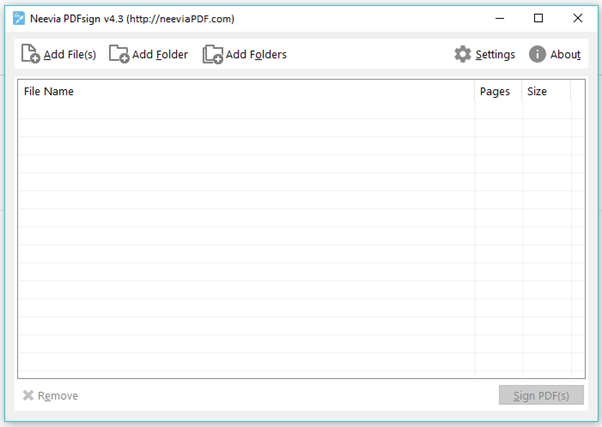
Click Add files to select the PDF files to be digitally signed. In case you would like to sign all PDF files in a folder simply click Add folder , navigate to the destination folder then click OK. For multiple folders click Add folders.
Output Settings
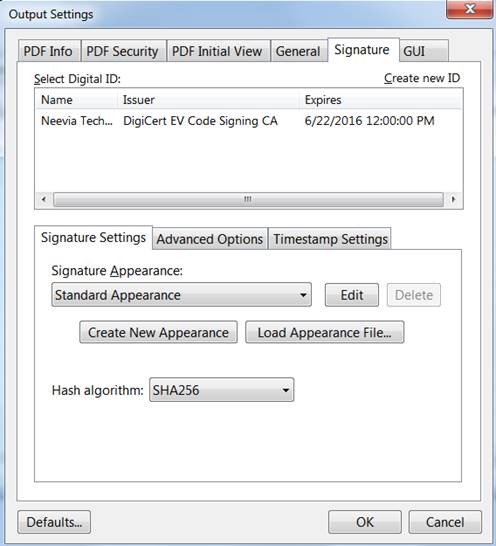
Before signing PDF files you need to specify the output settings. To do that click on the Settings button. The interface below will be displayed.
Signature Settings
In this window you’ll see all the certificates installed on your computer and have to select the one you want to use to digitally sign your PDF files. If nothing is listed in the Digital ID box that means no certificate is installed and you either need to install one or if you do not want to do that use the Create new ID button to create a new digital certificate.
When Create new ID is clicked the window below will be displayed.
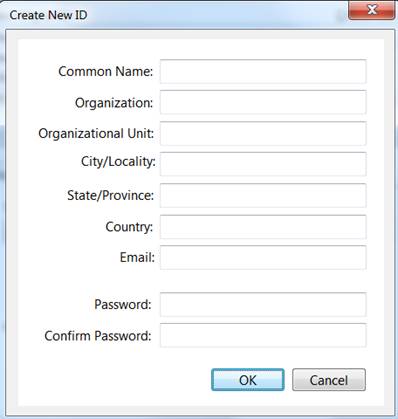
This allows you to create a public key certificate that you can use for digitally signing PDF files.
Unlike the certificates issued by certain certification authorities the one generated by PDFsign is not pre-trusted by Adobe Reader/Acrobat. You will have to manually add it to the trusted identities via the signature in your PDF document.
To do that:
- open the PDF containing the user’s self-signed signature.
- click the signature in the document to check whether it’s valid.
- click Signature Properties, and then click Show Certificate.
- in the Certificate Viewer dialog box, click the Details tab and note the MD5 digest and SHA1 digest values (fingerprint) in case you want to contact the certificate’s originator to confirm that the values are correct. The certificate should be trusted only if the values are correct.
- after you verify that the certificate information is correct, click the Trust tab, click Add To Trusted Identities, click OK, specify trust options, and click OK
The fields in the above window are are known as the certificate's Distinguished Name which is used to uniquely identify the signing entity. Each field is explained below:
Common name: the name that distinguishes the certificate best, and ties it to your organization. For example in the case of an SSL web server certificate you need to enter your exact host and domain name that you wish to secure (www.yourdomainname.com). This may also be the root server or intranet name for your organization. Do not include the "http://" or "https://" prefixes in your common name. Do not enter your personal name in this field.
Organization: the name under which your business is legally registered. The listed organization must be the legal registrant of the domain name in the certificate request. If you are a small business/sole proprietor you need to enter the certificate requestor's name in the "Organization" field, and the DBA (doing business as) name in the "Organizational Unit" field.
Organizational Unit: (optional) - use this field to differentiate between divisions within an organization (for example: "Engineering" or "Human Resources"). If applicable, you may enter the DBA (doing business as) name in this field.
City/Locality: the full name of the city/locality in which your organization is registered/located. Do not abbreviate.
State/Province: name of state, province, region, territory where your organization is located. Please enter the full name. Do not abbreviate.
Country Code: the two-letter International Organization for Standardization (ISO-) format country code for the country in which your organization is legally registered.
Password: in this field you must to enter the password that will protect the access to your private key. Use a password of at least eight characters.
Advanced Options
In this section you can specify the reson for signing a PDF document , location and contact information.
Reason for signing a document contains the following by default:
· this document is ready for review;
· I am the author of this document;
· I have reviewed this document;
· I am approving this document;
· this document is ready for review;
· this document is ready for approval;
· document is certified;
· document is released;
· I have reviewed specified portions of this document;
You can define your own reason for signing a document by editing any of the options above.
Once you are done with this a signature appearance needs to be defined by clicking on the New button in the Signature Appearance section. If you do not want to do that the standard appearance will be used.
In case you would like to make your signature invisible instead of Standard Appearance select Invisible then click New to create the digital signature.
To modify the default settings click Edit. The window below will be displayed:
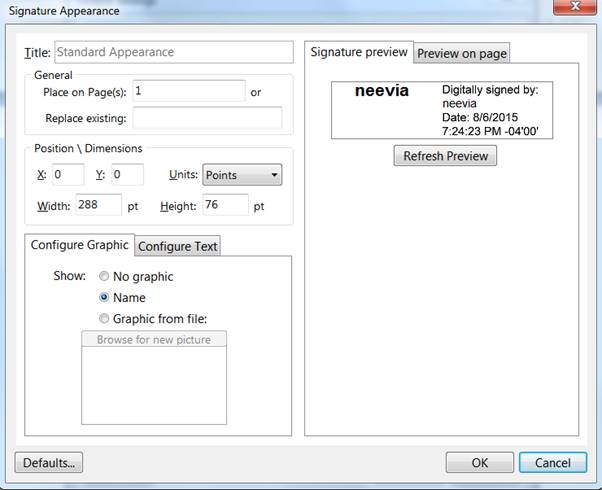
In the General section you can specify on which page to place the signature. If zero (0) is entered your signature will be automatically placed on the last page.
In case the PDF document already contains a digital signature field that you want to use, type its name in the Replace existing textbox.
Position: here you can enter the X and Y values in points that determine where on the selected page(s) your signature is placed. If you use positive values the coordinate system origin will be in the upper left corner. In case negative values are used the coordinate system origin will be in the lower right corner.
Dimensions: allows you to enter the width and height of the rectangle that will contain your signature. In this section you can also specify the units of measurement you want to use: points, inches, centimeters, millimeters.
Configure graphic: it allows you to associate a picture with your digital signature which can be a scanned image of your handwritten signature or any image you want. Check Graphic from file then Browse for new picture to select your desired image. In case you do not want any picture associated with your signature simply select No graphic. Should you check Name instead of an image the signer name will be used.
Configure Text: in this section you can define the text color for your digital signature and select what fields to show.
The following are available:
- name
- location
- date
- labels
- reason
- DN name
Except for Labels and DN name the rest of the fields are self-explanatory.
DN name: shows the user attributes defined in your digital ID. It may also include name, organization and country.
Labels: when you check this option you see all available labels like Digitally signed by, Date, Location, Reason. After this click on the down arrow for Text box position to select how to align the text in the rectangle containing your signature. It can be on the right or left.
At all times during the process of defining your signature you can see how it will look like in the two preview sections:
Signature preview: this, as the name suggests displays a preview of your signature.
Preview on page: shows where exactly on page your signature is placed.
Click Refresh preview to see the last change(s) made.
Certify Signature: this is a signature that certifies a PDF document and can be applied only if the PDF was never signed. This type of signature allows for the following changes:
· disallow any change to the document;
· only allow form fill-in;
· only allow commenting and form fill-in;
If any other changes than the ones specified above are made to a PDF when the file is certified, the certifying signature becomes invalid.
Timp-stamp signature: the main purpose of a time stamp is to reduce the chance of an invalid signature by helping to prove that nothing was changed after the signature was applied. In order to apply a time stamp you need to have an account with a 3rd party time stamping authority and enter your credentials (user name and password) along with the server Internet address in the corresponding textboxes.
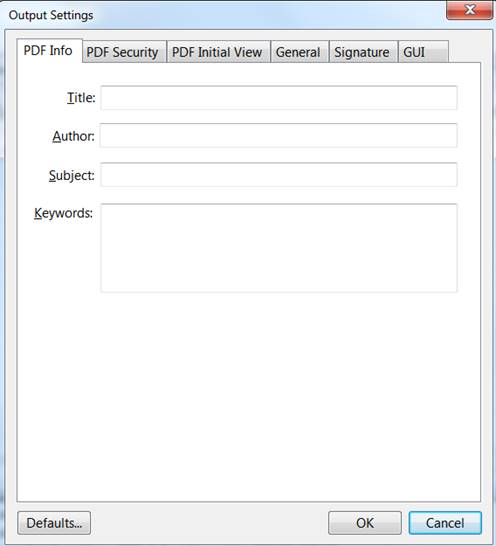
PDF Information
It allows you to specify Title, Author, Subject and Keywords for the signed file.
PDF Security
To encrypt the output PDF file, check Encrypt Document then select the encryption level from the Compatibility drop down box. There are 6 options:
- Acrobat 3.0 and later (PDF 1.2) enables 40 bit RC4 encryption (weak - not recommended)
- Acrobat 5.0 and later (PDF 1.4) enables 128 bit RC4 encryption
- Acrobat 6.0 and later (PDF 1.5) enables 128 bit RC4 encryption
- Acrobat 7.0 and later (PDF 1.6) enables 128 bit AES encryption
- Acrobat 9.0 and later (PDF 1.7) enables 256 bit AES encryption
- Acrobat X and later (PDF 1.7 ext3) enables 256 bit AES R6 encryption
Encrypt All Document Contents
When you select this option both the document and document metadata will be encrypted. Search engines will not be able to access the document metadata when this option is used.
Encrypt All Document Contents Except Metadata
This is valid for Acrobat 6 and later. Only the contents of a PDF document will be encrypted. Metadata remains fully accesible for search engines.
Require a Password to Open the Document
This allows you to set a password for opening the encrypted PDF.
Change Permissions Password
This password prevents users from changing the permission settings. The user can view the file in Acrobat Reader but must enter the specified Permissions password in order to change the file’s Security and Permissions settings.
Permissions
Printing Allowed - Specifies the level of printing that users are allowed for the PDF document.
Possible values:
None - Disables printing.
Low Resolution (150 dpi) - Users can print but the resolution will not be higher than 150-dpi. Each page is printed as a bitmap image which may cause files to print at a slower speed. To make this option available set the Compatibility option to Acrobat 5 (PDF 1.4) or later.
High Resolution - Allows users to print at any resolution. PostScript and other printers that come with high-quality printing features can be used.
Changes Allowed - Enables the editing actions that are allowed in the PDF document. Possible values:
None - when selected none of the changes listed in Changes Allowed drop down box, such as filling in form fields and adding comments are permitted.
Inserting, Deleting, And Rotating Pages - allows users to insert, delete, and rotate pages. Also bookmarks and thumbnails creation are permitted. This option works only for high (128‑bit RC4, AES or AES256) encryption.
Filling in Form Fields and Signing Existing Signature Fields - when selected users can fill in forms and add digital signatures. Adding comments or creating form fields is not permitted. This option works only for high (128‑bit RC4, AES or AES256) encryption.
Commenting, Filling In Form Fields and Signing Existing Signature Fields - users are allowed to add comments, digital signatures and fill in forms. Moving page objects or create form fields is not permitted.
Page Layout, Filling in Form Fields and Signing - users can insert, rotate or delete pages and create bookmarks or thumbnail images, fill out forms, and add digital signatures. Creating form fields is not permitted. This option works only for low (40‑bit RC4) encryption.
Any Except Extracting Pages - allows users to edit the document, create and fill in form fields, add comments and digital signatures.
Enable Copying of Text, Images, and Other Content - allows users to select and copy the contents of a PDF.
Enable Text Access For Screen Reader Devices For The Visually Impaired - when selected visually impaired users can read the document with screen readers. It doesn’t allow users to copy or extract the document’s contents. This option works only for high (128-bit RC4, AES or AES256) encryption.
PDF Initial View
In this window you can set the PDF Initial View options:
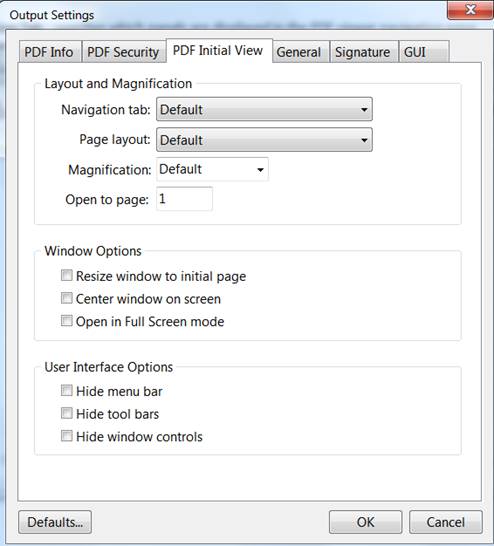
Navigation Tab - specifies which panels are displayed in the PDF viewer navigation pane.
Page Layout - specifies how document pages are arranged.
Magnification - use this to select at what zoom level the document will appear when opened.
Open To Page - specifies the page that appears when the PDF document opens.
Window Options - these options allow you to specify how the PDF viewer window adjusts in the screen area when a PDF document is opened.
Resize Window To Initial Page - adjusts the document window to fit snugly around the opening page, taking into account the options that you selected under Document Options.
Center Window On Screen - instructs the PDF viewer to position the window in the center of the screen area.
Open In Full Screen Mode - maximizes the document window and displays the document
without the menu bar, toolbar, or window controls.
User Interface Options
These options allow you to specify which parts of the PDF viewer interface - the menu bar, the toolbars, and the window controls - are hidden.
Note: take into account that If you hide the menu bar and toolbars users cannot apply commands and select tools unless they know the keyboard shortcuts.
GUI - Graphic User Interface
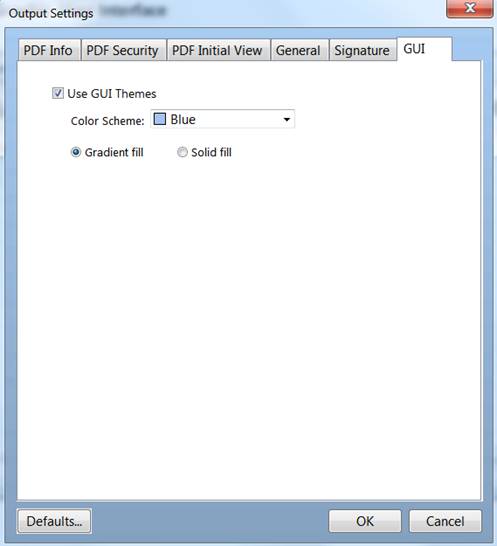
In this window you can select the Graphic User Interface themes. Check Use GUI Themes to enable the Color Scheme. Once that is enabled check either Gradient fill or Solid fill to specify how the color will be displayed.
CODE SAMPLES
For a full and updated list of PDFsign/encrypt code samples please visit http://neeviaPDF.com/support/examples/pdfsign/
Example 1vb. Sign a PDF file with an invisible signature (Visual Basic)
Dim NVsign : Set NVsign = CreateObject("PDFsign.Neevia")
NVsign.CertificateSubject = "Test certificate"
NVsign.CertificatePassword = "password"
NVsign.Reason = "I am the creator of this document"
NVsign.Invisible = true
Dim retVal : retVal = NVsign.SignPDF("c:\in.pdf","c:\out.pdf")
If retVal <> 0 Then
MsgBox("Error code=" & CStr(retVal))
Else
MsgBox("Done")
End If
Example 1delphi. Sign a PDF file with an invisible signature (Delphi)
uses ComObj; ..... procedure TForm1.Button1Click(Sender: TObject); var NVsign : Variant; retVal : Integer; begin NVsign := CreateOleObject('PDFsign.Neevia'); NVsign.CertificateSubject := 'Test certificate'; NVsign.CertificatePassword := 'password'; NVsign.Reason := 'I am the creator of this document'; NVsign.Invisible := true; retVal := NVsign.SignPDF('c:\in.pdf', 'c:\out.pdf'); if retVal <> 0 then Application.MessageBox(PChar('Error code=' + IntToStr(retVal)),'',0) else Application.MessageBox('Done','',0); end;
Example 2vb. Sign and timestamp a PDF file (Visual Basic)
Dim NVsign : Set NVsign = CreateObject("PDFsign.Neevia") NVsign.CertificateFile = "c:\cert.pfx"
NVsign.CertificatePassword = "pwd"
NVsign.TimeStamp = true NVsign.TimeServerURL = "http://tsa.neeviaPDF.com/tsa" NVSign.Units = 1 NVsign.X = 0 NVSign.Y = 0 NVSign.Width = 6 NVSign.Height = 2 NVSign.ViewType = 1 NVSign.Reason = "I am the creator of this document" NVSign.TextColor = "#0000FF" Dim retVal : retVal = NVsign.SignPDF("c:\in.pdf","c:\out.pdf") If retVal <> 0 Then MsgBox("Error code=" & CStr(retVal)) Else MsgBox("Done") End If
Example 2delphi. Sign and timestamp a PDF file (Delphi)
uses ComObj; ..... procedure TForm1.Button1Click(Sender: TObject); var NVsign : Variant; retVal : Integer; begin NVsign := CreateOleObject('PDFsign.Neevia'); NVsign.CertificateFile := 'c:\cert.pfx'; NVsign.CertificatePassword := 'pwd'; NVsign.TimeStamp := true; NVsign.TimeServerURL := 'http://tsa.neeviaPDF.com/tsa'; NVsign.X := 0; NVSign.Y := 0; NVSign.Width := 6; NVSign.Height := 2; NVSign.Units := 1; NVSign.ViewType := 2; NVSign.Image := 'c:\stamp.jpg'; NVSign.Reason := 'I am the creator of this document'; NVSign.TextColor := '#0000FF'; retVal := NVsign.SignPDF('c:\in.pdf', 'c:\out.pdf'); if retVal <> 0 then Application.MessageBox(PChar('Error code=' + IntToStr(retVal)),'',0) else Application.MessageBox('Done','',0); end;